The Second Wi-Fi Rule: Giving Your Smart Kit Its Own Lane at Home
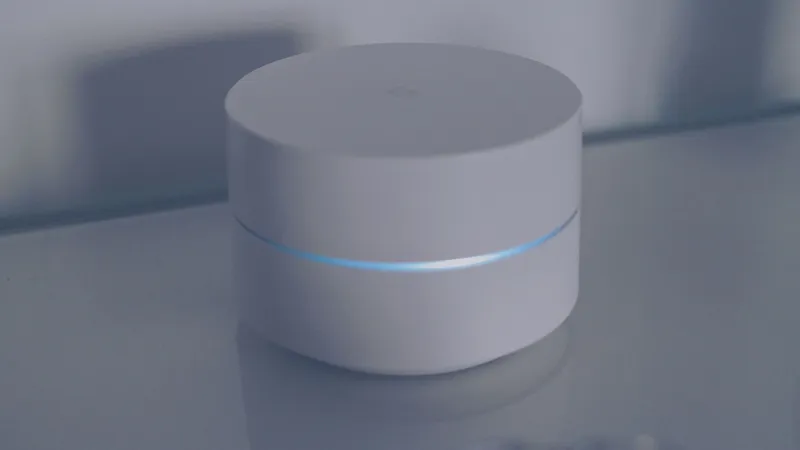
Most of us treat the home Wi-Fi like a single kitchen table: everyone sits at it, including the doorbell. That works until a £15 smart plug, a hand-me-down tablet and your work laptop are all sharing the same password and the same level of trust. A second Wi-Fi network is the tech equivalent of giving the smart kit its own lane. It is not a fortress. It is sensible housekeeping.
Why a second network is worth the faff
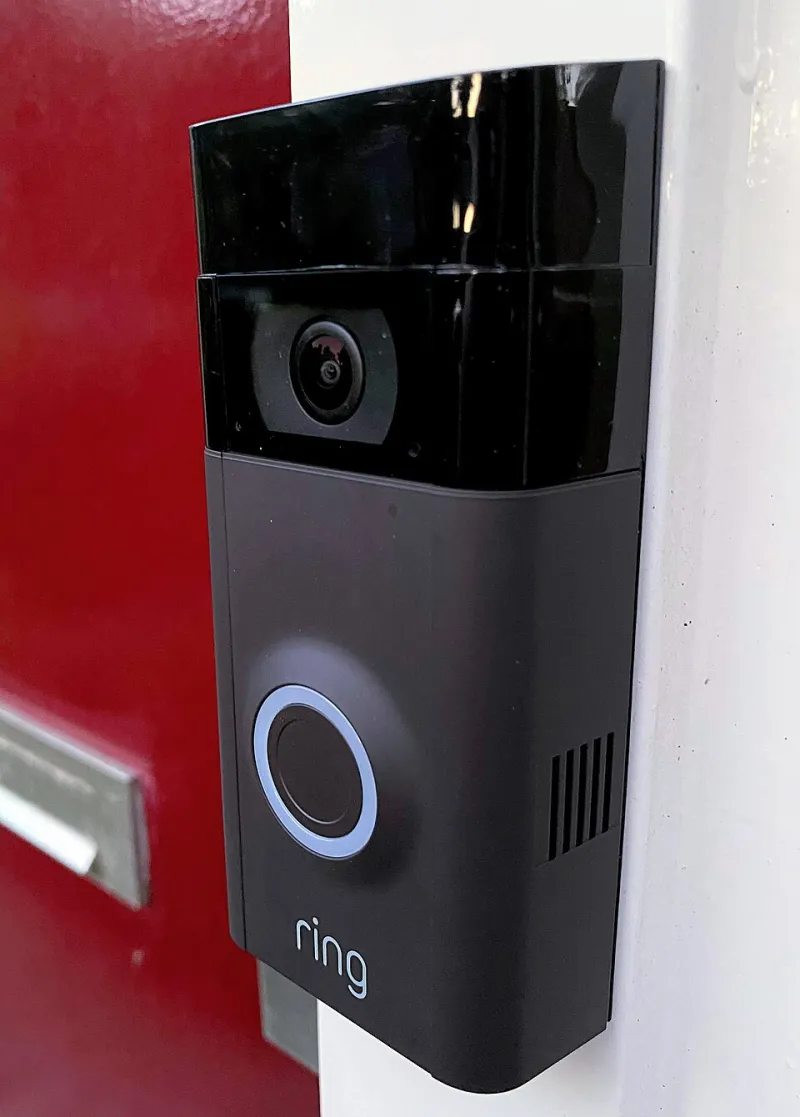
The pitch is simple: put the devices that hold your life on one network, and the devices that hold your fridge on another. Your phone, laptop, tablet and anything with work email on it stay on the main Wi-Fi. The smart plugs, bulbs, doorbell, robot vacuum and other app-controlled bits go on a second network.
The benefit is not that the second network is magically secure. Cheap smart devices are cheap for a reason: firmware updates are rare, apps are sometimes rough, and passwords get set once and forgotten. If one of those devices is compromised, a separate network makes it harder for it to wander over to your laptop or the external drive holding your photos. It also means you can hand visitors a different password without giving them the keys to everything else.
There is a practical bonus too. When the doorbell starts acting up, you know which network to poke at. You can reboot the smart kit without knocking the whole house offline. And if you sell a device or give a guest the push, you can change one password rather than reconnecting every screen in the house.
What your ISP router will probably do, and what it won't
Your broadband provider may call it a 'guest network'. That is fine. You can use it for guests, smart kit, or both. The label matters less than the separation.
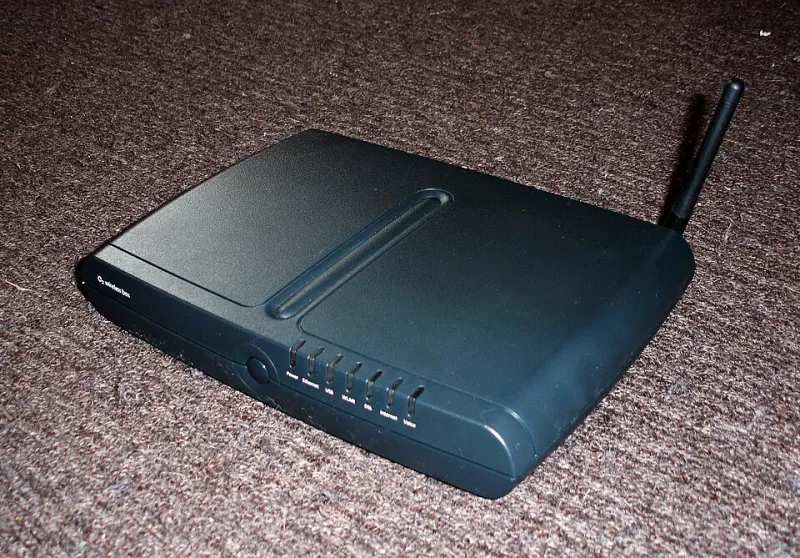
What matters more is that UK ISP routers are a mixed bag. BT, EE, Sky, Virgin Media, TalkTalk and Plusnet hubs all handle this differently. Some let you switch on a guest network in the browser admin page. Some bury it in the provider's app. Some give you one extra SSID and very little control over which band it uses or whether devices on it can talk to each other. Others extend the guest network to mesh boosters, and some do not.
So check your model before you plan a whole smart-home reshuffle. Log in to the router, look for 'Guest network', 'Guest Wi-Fi' or 'Additional network', and see what options you actually get. If your router cannot do it, a decent mesh system or a separate router running in modem mode can. But do not buy new kit just for this unless you were already shopping.
The sorting hat: what goes where
A simple rule works for most homes.
Main network: phones, laptops, tablets, work devices, games consoles, and the main TV or streaming stick if you use your phone to cast to it. These are the things you trust, update and use for banking, email and photos.
Second network: smart plugs, smart bulbs, doorbell cameras, robot vacuums, smart sensors and the kind of gadget you set up once and then forget. Visitors also get this password.
The tricky ones: smart TVs and streaming sticks. If you cast from your phone, moving the TV to a separate network can break that. Test it before you commit. The same goes for anything that needs your phone and the device on the same network for setup. Some kit will happily live on the second network once it is running, even if it needs a brief spell on the main one to get there.
Do not overthink the name. 'Guest' or 'House-Kitchen' is fine. Avoid anything that sounds like a challenge or includes your flat number.
Set it up in an afternoon
-
Get into the router admin page. Check the sticker on the router for the address, often 192.168.0.1 or 192.168.1.1. A browser is usually clearer than the provider app.
-
Turn on the guest or additional network. Give it a name you will recognise. Keep the main network name as it is so you do not have to reconnect everything.
-
Use WPA2 or WPA3 and a different password. Do not reuse the main Wi-Fi password. Put the new one in your password manager and share it with visitors as needed.
-
Check the band. Many smart plugs and bulbs only speak 2.4GHz. If your router lets you choose, make sure the second network has 2.4GHz available. If it uses one combined name, test the awkward devices first.
-
Understand client isolation. Guest networks often stop devices seeing each other, which is good for visitors. It can also stop a smart plug being found by your phone during setup. If an app cannot find a device, check that setting before you blame the gadget.
-
Move devices one at a time. Start with the least critical thing, such as a spare smart plug. Then do bulbs, then the doorbell, then the vacuum. Test each one in its app before moving the next.
-
Write it down. A short note in your phone listing which devices are on which network will save you a headache in six months.
The catches worth knowing
A guest network is not a full security wall. On some routers it is little more than a second name with the same underlying access. On others it is properly separated. You will only know by checking the settings or testing. It also will not stop a compromised smart plug from contacting the internet. What it can do is limit what that plug can reach inside your home.
It is not a replacement for updating your router, using unique passwords and turning on two-factor authentication where you can. Think of it as one more locked door in a house that still needs windows that close.
And yes, some devices will misbehave. If a smart device refuses to work on the second network, move it back to the main one and make a note. A separate lane is useful, not a religion.
The fridge rule
Main network: things that hold your life. Second network: things that hold your fridge. Visitors get the second password. If something cannot behave on the second network, it gets promoted only after you understand why. That is a boring rule, but boring is exactly what you want from the plumbing behind your smart home.